DigiLocker Documents: Access and Verification Guide 2026
DigiLocker documents carry the same legal validity as their physical originals, which makes it worth knowing exactly how to access, verify, and share them correctly. This guide covers logging in, the difference between issued and uploaded documents, how verification actually works, and how to share your certificates with any agency that needs them in 2026.
Table of Contents
What Is DigiLocker
DigiLocker is a Ministry of Electronics and Information Technology initiative under Digital India that gives every citizen a free, cloud-based document wallet. Since amendments to the IT Act, documents issued or shared through DigiLocker are legally equivalent to physical original documents for all official purposes, and hundreds of millions of Indians now use it to store certificates securely.
How to Access Your DigiLocker Documents
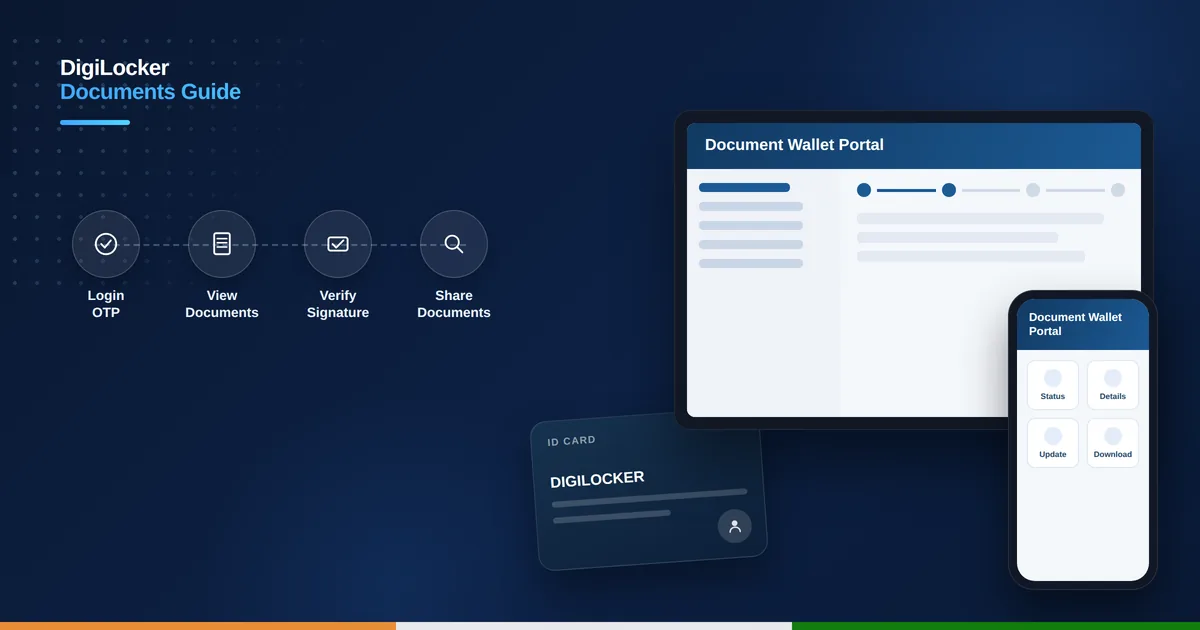
You can log in through the website at digilocker.gov.in or the DigiLocker mobile app using your mobile number or Aadhaar number, followed by an OTP sent to your registered mobile. Linking your Aadhaar is recommended, since many government-issued documents are fetched automatically only once your Aadhaar is linked and verified. If you have not created an account yet, see our DigiLocker account registration guide first.
Issued Documents vs Uploaded Documents
Your DigiLocker account has two separate sections. “Issued Documents” are pulled directly from the issuer’s own database, such as a driving licence from the transport department or marksheets from your education board, and arrive already digitally signed and automatically verified. “Uploaded Documents” are files you scan and upload yourself, which are not automatically verified unless you self-attest them using eSign.
How to Check Which Documents Are in Your DigiLocker
- Log in to digilocker.gov.in or open the mobile app.
- Go to the “Issued Documents” tab to see documents fetched from official issuers.
- Search for a specific document type, such as PAN, driving licence, or marksheet, if it is not already listed.
- Select the relevant state or issuing authority and enter the requested details to pull the document.
- Check the “Uploaded Documents” tab for anything you have personally added.
- Use the eSign option on uploaded files if you need them to carry self-attested validity.
How Document Verification Works
Every issued document carries a digital signature from the issuing authority along with a QR code or unique document identifier. Anyone receiving your document can confirm it is genuine by scanning the QR code or by using the “Verify Document” feature on digilocker.gov.in, which checks the digital signature against the issuer’s certificate to confirm the document has not been altered.
How to Share Verified Documents with Agencies
You can share documents directly within DigiLocker by generating secure access for a requesting agency, without handing over a separate file. Alternatively, download your document as a digitally signed PDF that carries the issuer’s signature and QR code, and submit it independently, since its authenticity remains verifiable by anyone who checks it.
Common Issues and How to Fix Them
If a document shows as “not found,” the issuer may not have uploaded records to DigiLocker yet, or the details you entered may not exactly match their database. If a document fails to fetch, check that your Aadhaar is correctly linked and that your mobile number matches the one on record with the issuer, then try again after correcting any mismatch.
DigiLocker Support and Helpdesk
For unresolved issues, submit a request through the official support portal at support.digilocker.gov.in, or email helpdesk@negd.in for assistance. DigiLocker queries can also be raised through the MyGov Helpdesk on WhatsApp for a quicker response on common questions.
Everyday Uses for DigiLocker Documents
DigiLocker documents are widely accepted for college admissions, job applications, travel identification, and government scheme enrolments, since institutions and airports can verify them instantly without needing a physical copy. Many exam boards now issue marksheets directly to DigiLocker, saving students from having to request duplicates from their school in future.
Traffic police and transport authorities across India also accept a driving licence or vehicle registration certificate shown through the DigiLocker app as valid proof, meaning you no longer need to carry physical copies of these documents at all times. Keeping your most-used documents issued and verified in DigiLocker in advance saves time whenever they are unexpectedly needed.
Are DigiLocker documents legally valid?
Yes, documents issued or shared through DigiLocker are legally equivalent to physical originals under the IT Act.
What is the difference between issued and uploaded documents?
Issued documents come directly from the issuer and are automatically verified, while uploaded documents need self-attestation via eSign.
How can someone verify my DigiLocker document is genuine?
They can scan the QR code on the document or use the “Verify Document” feature on digilocker.gov.in to check its digital signature.
Why can’t I find my document in DigiLocker?
The issuer may not have uploaded records yet, or your entered details or Aadhaar linkage may not match their database.